Frontend Design Skills: Claude Code & Codex Setup
Choose a skill for the job, install its complete folder, then give your agent a concrete brief. This guide covers local setup, a recorded browser example and six resources you can read and copy without signing in.
By Neruve · Updated
Build on a working page
Preview a working HTML page, then use its source and paired prompt to apply these techniques with your coding agent.
Framewise — AI Product Landing Page HTML Template
Practice a clear product story, visual hierarchy and responsive hero.
Preview templateAster Hale — Product Designer Portfolio HTML Template
Adapt the service sections, project stories and contact flow to your own work.
Preview templateSkills stay free to read and copy without signing in. Template previews are public; source downloads and paired prompts require an account and the applicable purchase or plan. View source access and pricing
Choose the skill before installing
Anthropic’s frontend-design provides visual design guidance. Taste is a separate community project; Framer conversion and motion skills solve different tasks. A README overview is not an installable SKILL.md. Check the original source, license and dependencies first. The setup below uses Anthropic’s frontend-design as an example, not a universal installer.
Install in Claude Code
Use a project-local skill to keep this setup scoped to one repository. Keep the original folder structure, license and any supporting files. A copied installation prompt asks your agent to do this work; the website does not install anything on your machine.
- Open the original frontend-design source linked below and review SKILL.md, its license and any referenced files.
- Copy the complete selected skill folder into .claude/skills/frontend-design/ at your project root. Compare an existing folder before replacing any files.
- Open Claude Code in that project. Type / to confirm frontend-design is available, then select it and supply a task.
.claude/skills/frontend-design/SKILL.mdFor this example, invoke /frontend-design with your brief. If it is missing, check the folder and SKILL.md name, the current repository and workspace policy. Plugin skills may use a namespaced command.
Official setup documentationInstall in Codex
Codex uses a different project directory. Reuse compatible skill instructions, but inspect any tool-specific commands or dependencies before running them. A skill helps the agent work; it does not provide a backend or an account for another tool.
- Copy the reviewed skill folder into .agents/skills/frontend-design/ at your project root, keeping its supporting files and license.
- Check that SKILL.md begins with YAML fields name and description, followed by the actual instructions. For Anthropic’s example, the name is frontend-design.
- In Codex CLI or the IDE extension, use /skills or type $ to select the skill. In the app, use its skill selector. If a change is not detected, restart Codex.
.agents/skills/frontend-design/SKILL.mdIn CLI/IDE, select $frontend-design and add the brief. Confirm the agent reads the chosen file; a matching folder name alone does not prove it was used.
Official setup documentationRun one brief and check the actual page
Name the page, audience, primary action and facts that must stay unchanged. Start with the brief below or the recorded example. Check the rendered page at 1280, 390 and 320 px, follow the main link and use the keyboard. Keep the output and screenshots; report a failure instead of replacing it with a claimed pass.
Frontend design Skill not appearing or not triggering?
Start by identifying how the Skill was installed. A project folder and a Claude Code plugin have different locations and command names.
- A Skill folder in your project
- For the manual Claude Code example, keep SKILL.md and its supporting files in .claude/skills/frontend-design/. Codex uses the .agents/skills/ example above. The README overview is not the installable file.
- A Skill supplied by a plugin
- In Claude Code, open /plugin and check the plugin is installed, enabled and scoped to the intended project or user. Use the command shown in the menu; a plugin Skill can have a namespaced name. Follow the plugin’s own setup instructions.
Check in this order
- Check the current project, the chosen Skill source and its installation scope. Keep required support files; compare duplicate folders before replacing anything.
- Check that SKILL.md is named correctly and its YAML starts on the first line. For Claude Code, inspect name, description and invocation controls; malformed YAML can prevent automatic matching even when manual invocation works.
- Confirm the Skill is listed. In Claude Code, ask which Skills are available and check the / menu. If it is listed but unused, invoke the displayed command with a task matching its description; check disable-model-invocation and user-invocable.
- Confirm the agent actually reads the intended Skill and follows the requested task. Keep the file path or tool record with the output, then check the page in a browser. A folder name or attractive screenshot alone does not confirm Skill use.
The recorded Codex case below used a manually read, fixed-version file. It does not verify automatic discovery or a Claude Code plugin installation. Use the official documentation for your installed version.
Official setup documentationChoose a related Skill
All six pages are free to read and copy. Choose by task and read each page’s setup notes: Framer integrations, video tooling and supporting modules are not interchangeable with a general frontend skill.
Taste Skill — overview and installation
Read the project overview and available workflows. This README is an introduction, not the file to install.
Taste Skill — frontend design (v2 experimental)
Try the community frontend design workflow for landing pages and portfolios. The archived v2 is experimental.
Framer Skills — Convert Prompt
Convert a React/Tailwind request into a Framer-oriented prompt. Check the Framer integration requirements.
Framer Skills — Sync Styles
Bring explicitly supplied colors, text styles and icons into a Framer project. Requires the corresponding integration.
Claude Motion — community motion design Skill
Explore the community Claude Code/Remotion video workflow. This is not a built-in Anthropic feature.
Genjutsu Skill — Cast
Use the Cast workflow for motion and microinteractions. Keep its required _jutsu modules with the skill.
Original exercises you can adapt
These original Neruve examples remain in English. They are proposed inputs, not tested tool outputs or paid template prompts. Replace the fictional facts before using them.
A project brief for a frontend design skill
Work in this project's current stack. Read the existing routes, shared components,
styles and the selected frontend-design skill before proposing changes.
Use only the project files and assets I have permission to use.

Task: improve a fictional research-notes landing page for small product teams.
Page goal: explain collect → compare → decide; the primary link targets #workflow.
Design direction: warm paper, ink text, a clear research-note specimen and generous spacing.
Keep the existing API contracts, authentication, prices and route paths unchanged.
Use the skill for the design procedure; use my brief for product facts.

First propose the section order and the shared typography/spacing decisions.
Then implement one coherent pass. Check 1280, 390 and 320 px widths, keyboard focus,
the workflow anchor and reduced motion. Report the checks actually run and defects
still open. Do not invent testimonials, customer logos, metrics or a signup backend.
A focused design review
Review this existing page using the selected design skill.
Before editing, list the three highest-impact defects with a selector or section
name, viewport width and screenshot evidence. Separate styling defects from
broken behavior. Choose one defect, explain the smallest change that addresses it,
and preserve the current copy, prices, forms and navigation contracts.
After the repair, repeat the same browser check and report any regression.
Do not replace the whole page or add another component library for this repair.
Recorded example: Fieldnote with frontend-design
A small fictional research-notebook page: a note specimen, a collect–compare–decide workflow and a working section link. Open the example or download its original brief and HTML. The example stays in English.
Created in Codex on 13 October 2026 after manually reading the pinned Anthropic skill, then checked in a browser. Source used: Anthropic frontend-design · dbd4588
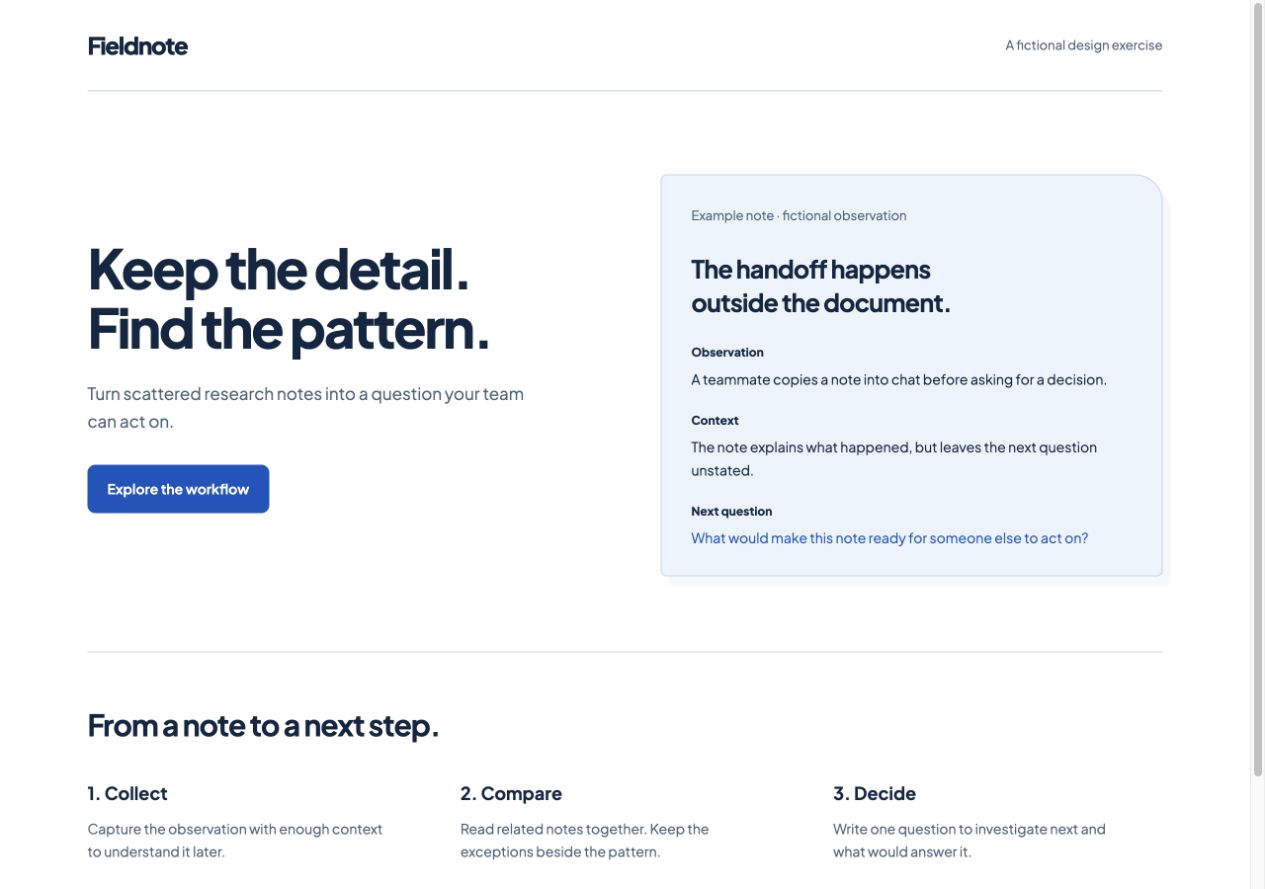
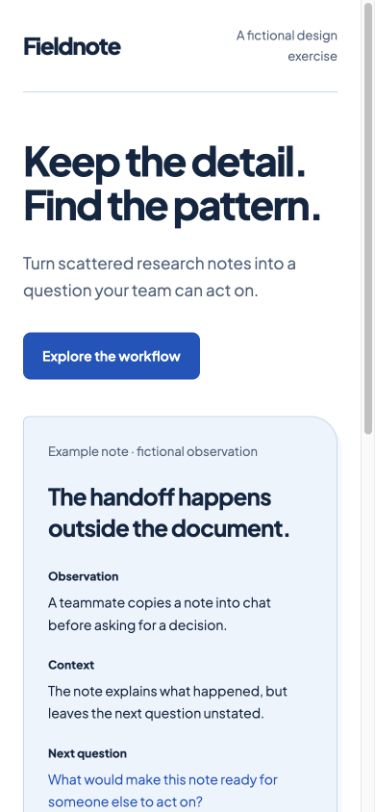
To repeat the exercise, install the reviewed skill using the instructions above, then give your agent the downloaded brief. Compare the actual output at 1280, 390 and 320 px; verify the workflow link and keyboard focus. Keep any differences in your report.
This is one manually guided example, not a test of automatic skill discovery, Claude Code, Taste or a Neruve generation service. There is no model comparison, signup flow or evidence of conversion gains.
Common questions
Does installing a design skill guarantee a better website?
No. The recorded example shows one Codex implementation after manually reading a fixed version of Anthropic’s skill. It does not compare with a no-skill baseline or establish better results for every tool. The older Fieldnote example used no design skill.
Explore designs and paired prompts
Neruve's public catalog offers website designs, available paired prompts and a skills directory. Interactive previews are available without signing in; paired prompts follow the item and plan access rules. This workflow uses your own coding tool and does not require a public Neruve site generator.
Official references
Third-party tools and skills belong to their respective authors. These links are references, not a claim of partnership or bundled access.